Plotting Your Required Area
Sewer & Water Plans - Plotting Your Required Area

Once you have selected your product in Tip #1 (Choosing the Correct Product), you will be taken to our mapping tool. This is where you define the specific area you want your plans to cover.
Note: There is no need to enter anything in the “Your reference for this order” field unless you wish to associate it with a particular job or project reference for your own benefit.
Step 1: Locate Your Area
Click the Search button to open the search box. You may find the required location for your area in two ways:
- Postcode: Enter the postcode of the property or the approximate area or...
- Coordinates: If you have them, you can enter the specific Easting & Northing coordinates.
Click Search then use the fields in the pop-up box to proceed.
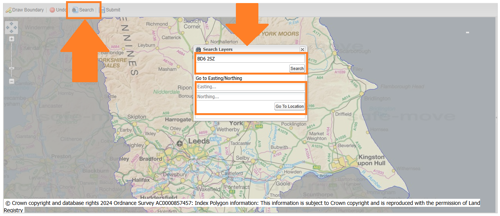
Note: Please be patient, as the search process may take several seconds to load your required area into your browser.
Step 2: Adjust Your View
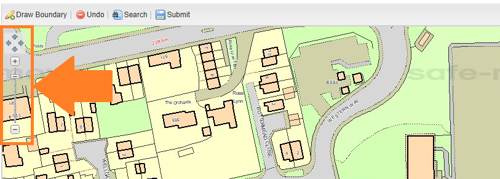
Once the the map of your required area loads into your browser window, use the navigation tools (indicated in the screenshot below) to centre your view:
- Zoom (+/-): Use the slider tool to zoom in for detail or out for a wider view.
- Pan (Arrows): Use the four-arrow icon to move around the map.
Step 3: Draw Your Boundary
Now it is time to plot the boundary of the area you need.
- Select Draw Boundary from the map’s toolbar.
- Start Plotting: Click on the map where you want to begin.
- Outline the Area: Work your way roughly around the area you wish to capture.
- Complete the Plot: Click back on your starting point to close the shape. Your plotted area will turn red.

Important Advice for a Successful Plot:
- Keep it Simple: There is no need to be perfectly accurate.
- Leave a Buffer: Aim to draw a boundary that includes plenty of space around the specific area you want to examine. This ensures you don't miss any nearby assets.
- Avoid "Trace Mapping": We recommend you do not use this option. It "snaps" the plotted boundary to the available building and land boundaries and is only useful if you want an exact building or specific land parcel outline with no surrounding land.
Step 4: Confirm and Continue

Once you are happy with the red highlighted area:
- Click the Submit button to commit the area to your order.
- On the following screen, click Next to proceed.
Next Tip: Paying for your order. ▶
Should you experience any difficulties with your order or require further assistance ordering, please contact the SafeMove team on 0333 220 6664 during office hours (9am to 4pm, Monday to Friday).
Sewer & Water Plans